Please be advised that we will be performing scheduled maintenance on Friday, September 25th, at 10:00 PM MST. During this window, BlueStep will be unavailable for approximately 30 minutes. We appreciate your patience as we continue to upgrade and enhance our services for you.
Alerts, actions, and tasks can be viewed and completed from the Charting page. The information displayed on the page will be determined by the specific job assignment. For example, a CNA will have different information displayed on the Charting page than a marketing staff member.
Alerts
Click on the "Alerts" tab in the Charting navigation.
Click on "Settings" in the search bar to refine the search criteria, and click the "Done" button to search.
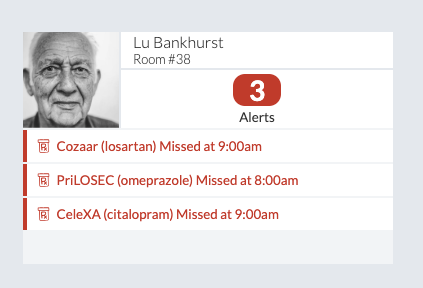
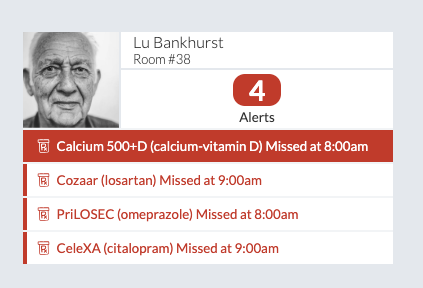
All the alerts for the facility are displayed here. The individual alerts are organized and displayed by resident.
Sign off and complete alerts:
Click on the alert that needs to be completed.
Enter the information needed.
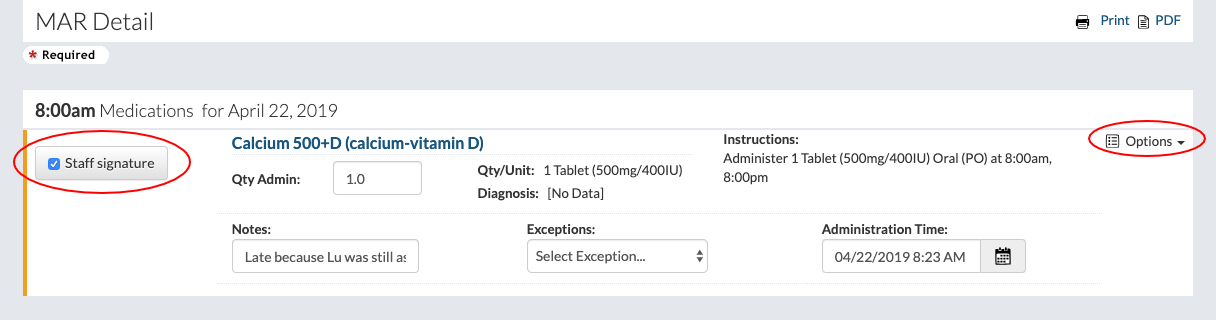
Click on "Options" if notes, exceptions, or an administration time need to be entered.
Click the "Staff Signature" button to authorize the completion of the alert.
Click the "Save" button to sign off and complete the alert.
As alerts are completed, they will drop off the resident's alert tile.
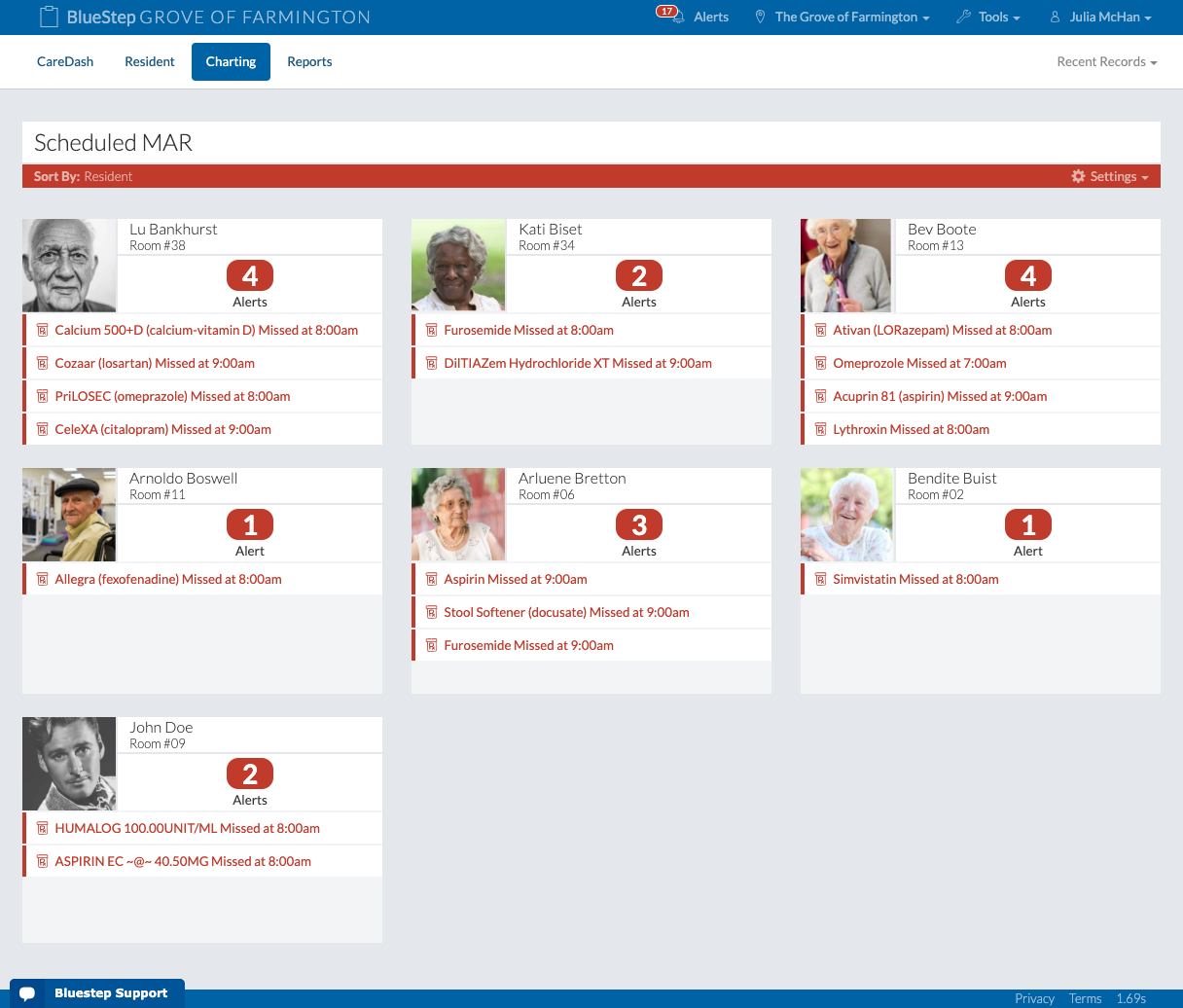
Scheduled MARs
Click on the "Scheduled MARs" tab in the Charting navigation.
Click on "Settings" in the search bar to refine the search criteria, and click the "Done" button to search.
To learn more about charting MARs, visit the Scheduled MARs help topic.
Scheduled ADLs
Click on the "Scheduled ADLs" tab in the Charting navigation.
Click on "Settings" in the search bar to refine the search criteria, and click the "Done" button to search.
To learn more about charting ADLs, visit the ADLs help topic.
Behaviors
Click on the "Behaviors" tab in the Charting navigation.
Click on "Settings" in the search bar to refine the search criteria, and click the "Done" button to search.
To learn more about charting Behaviors, visit the Charting Behaviors section of the Behavior Plans help topic.
Activity Tracking
Click on the "Activity Tracking" tab in the Charting navigation.
To learn more about Activity Tracking, visit the Activity Tracking help topic.
Charting Dashboard
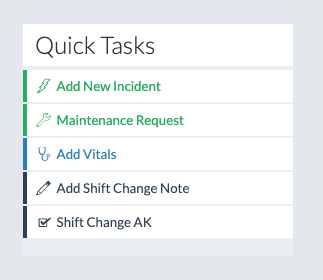
The "Quick Tasks" module contains personalized links to specific reports or actions.
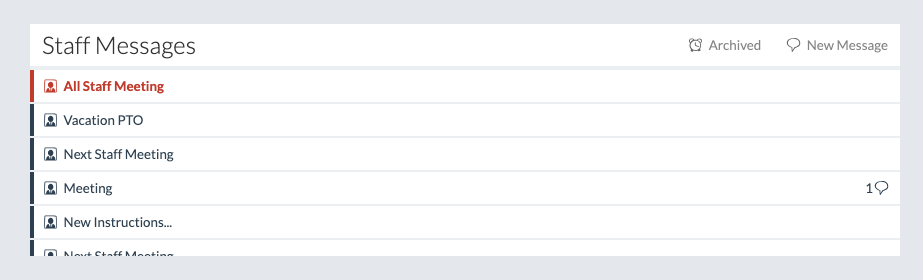
The "Staff Messages" module displays the messages for the logged in user. To learn more about Staff Messages, visit the Staff Messages help topic.
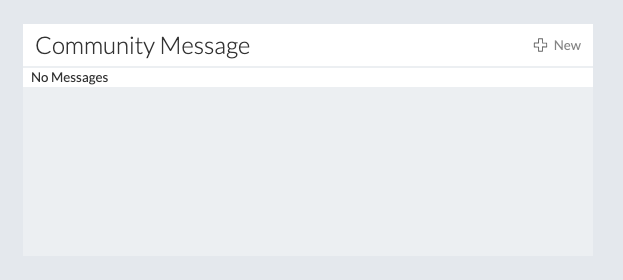
The "Community Message" module displays the all community messages. To learn more about Community Messages, visit the How to Enter a Community Message help topic.
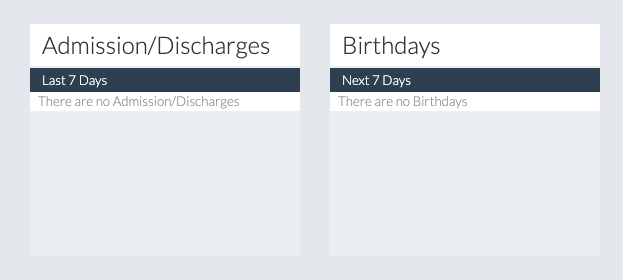
Other types of modules display their respective information.