Please be advised that we will be performing scheduled maintenance on Friday, September 25th, at 10:00 PM MST. During this window, BlueStep will be unavailable for approximately 30 minutes. We appreciate your patience as we continue to upgrade and enhance our services for you.
This training video shows how to enter and complete sliding scale insulin orders. It also includes MAR charting instructions for staff and includes how to enter a glucose level and reference the sliding scale instructions.
How to Enter a Sliding Scale Insulin Order
Click on "Select Resident" under the "Resident" tab.
Select a resident.
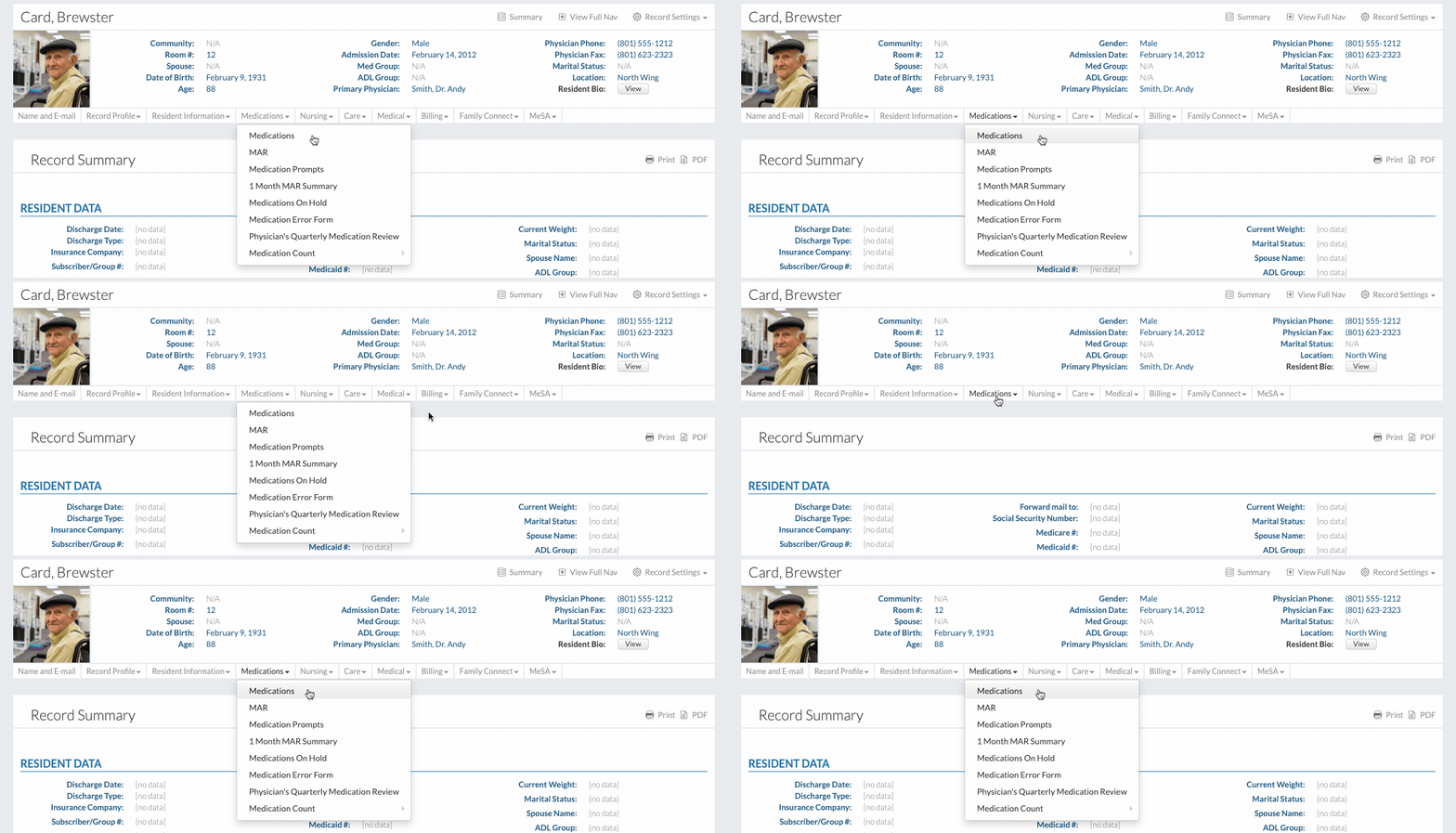
Click on "Medications" in the "Medications" dropdown.
Click the "New Entry" button.
Fill out the form.
Note that it is important to understand how to enter a medication before entering in a sliding scale insulin order. See the "How to Enter a Medication" help topic for more information.
If you can't find certain information in any of the dropdowns on this form, check the "Setup: Medication System" form on the Community Record to see if the information is activated or not.
Make sure the "Vital signs must be taken with this medication" button is selected, and that the "Glucose Blood Sugar" button is also selected.
Click the "Use Sliding Scale" button.
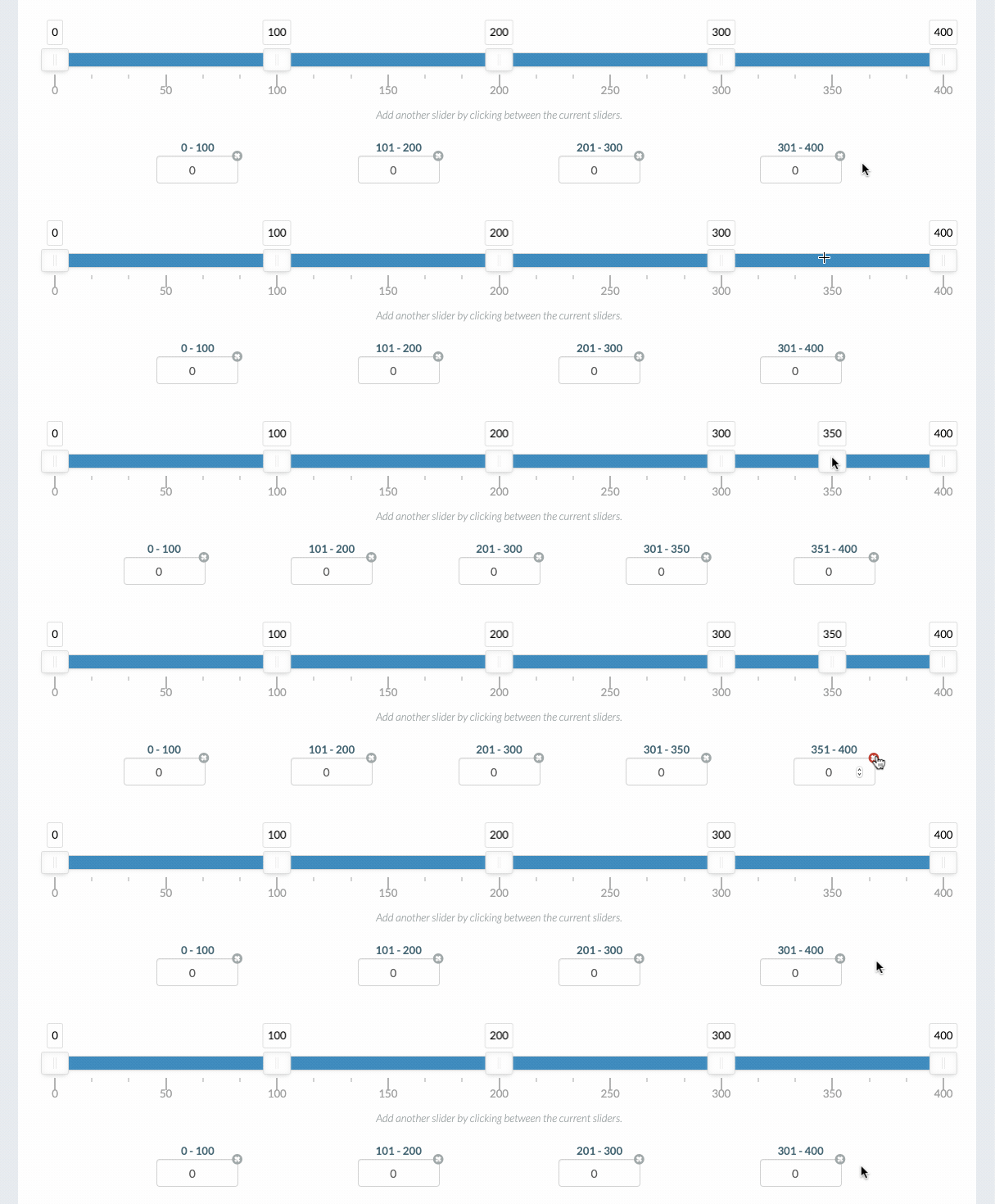
Each of the segments correspond with a number field below.
If a number field isn't needed, click the X button on the top right of the field.
If an additional number field is needed, click anywhere on the sliding scale bar.
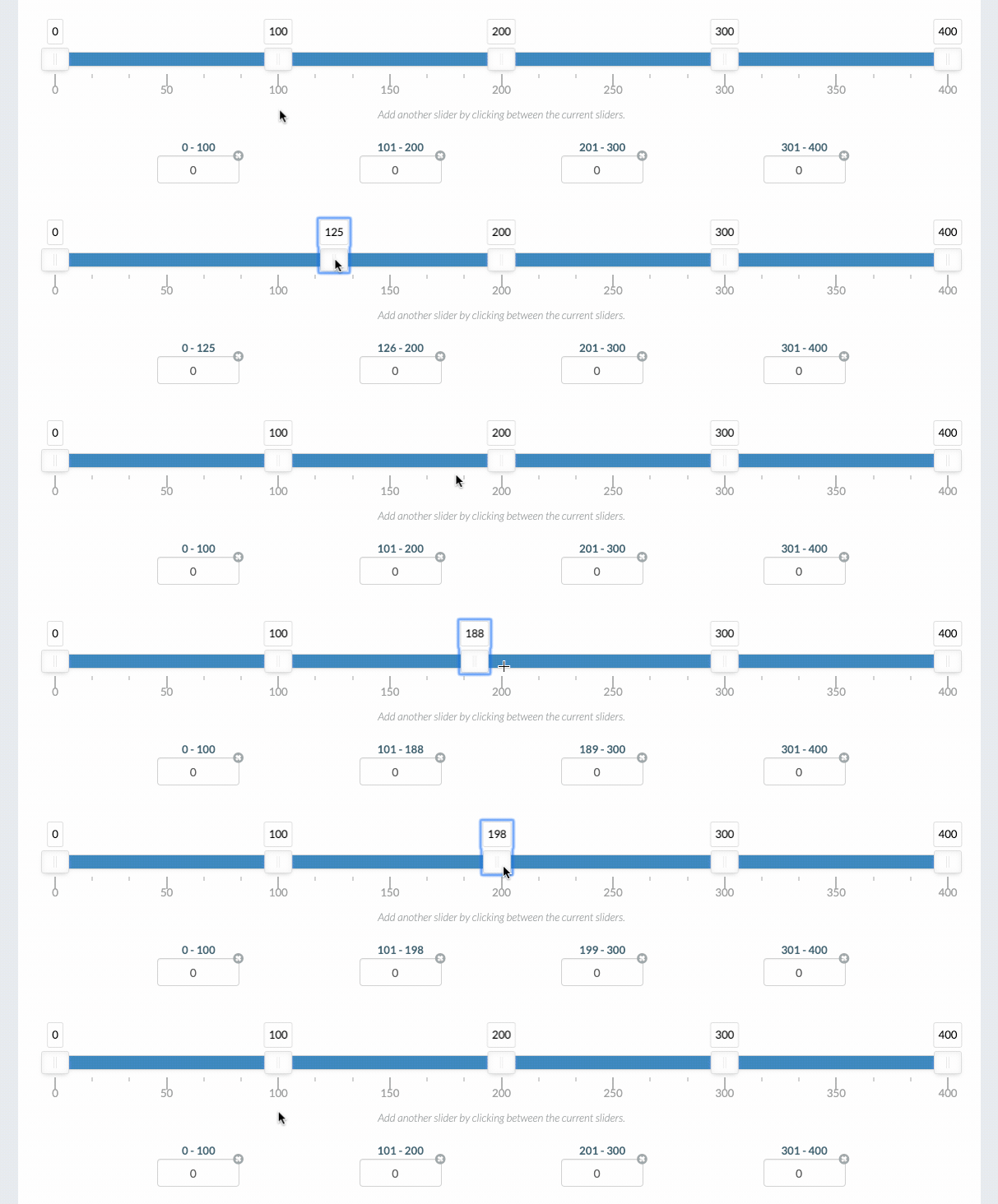
Click and drag a slider to move it, or click on a slider and use the keyboard arrow keys to move it.
For each segment, specify the unit number needed.
For instructions greater than or less than the sliding scale provides, use the text boxes below to specify those instructions.
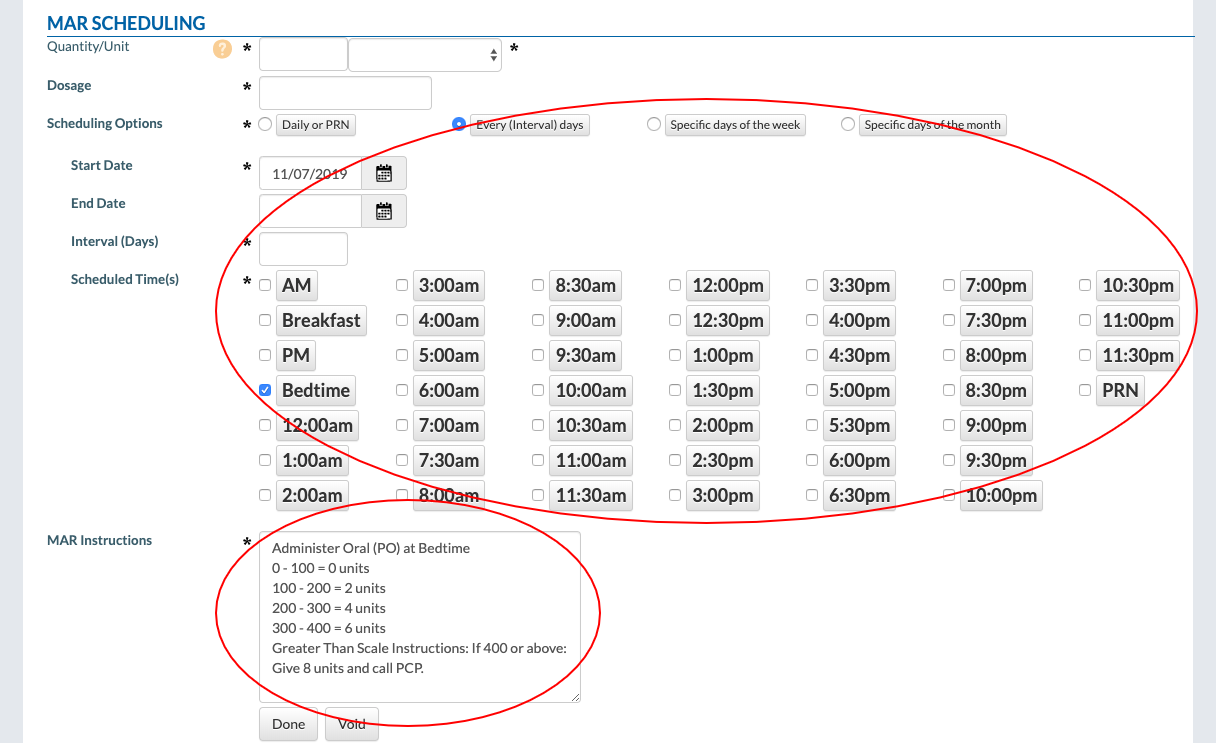
The "MAR Scheduling" section of the form shows all the information entered into the sliding scale. The information is presented in an organized, easy-to-understand way.
Other MAR settings can be made here as well.
Make sure to enter the person who prescribed the medication.
If the prescriber's name isn't in the dropdown, it can be added by clicking on the "Add New Prescriber" button.
Click the "Save" button to finish.
Staff View of a Sliding Scale Insulin Order
Click on "Charting" under the "Charting" tab.
Click on the "Scheduled MARs" tab.
Select a resident.
Fill out the form.
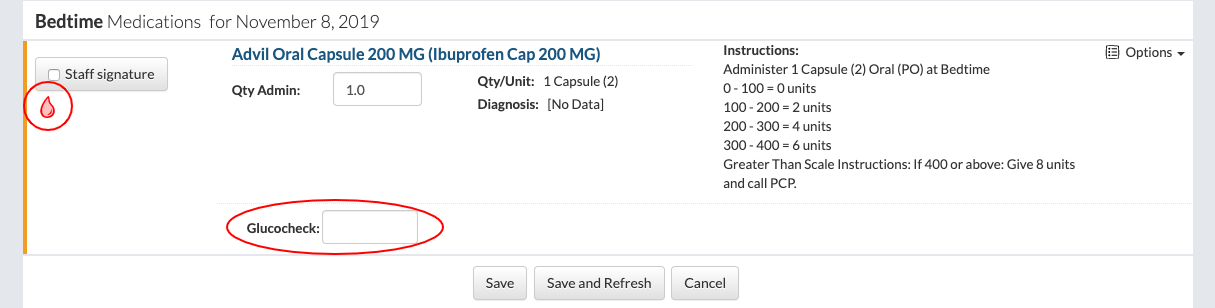
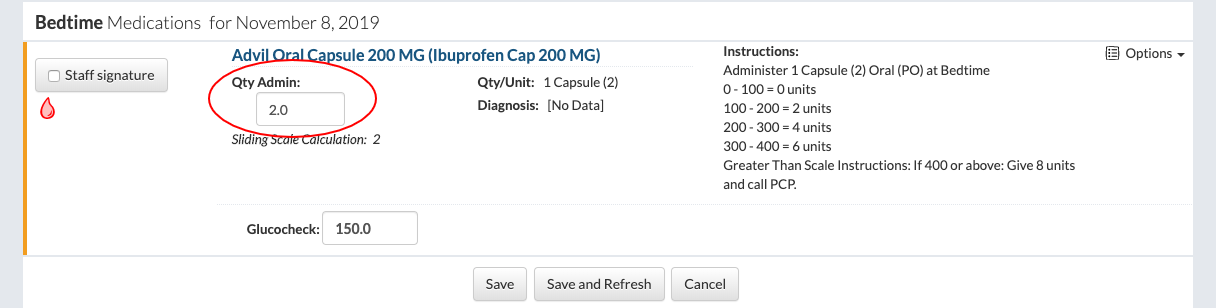
For sliding scale insulin orders, an icon and Glucocheck text field will appear.
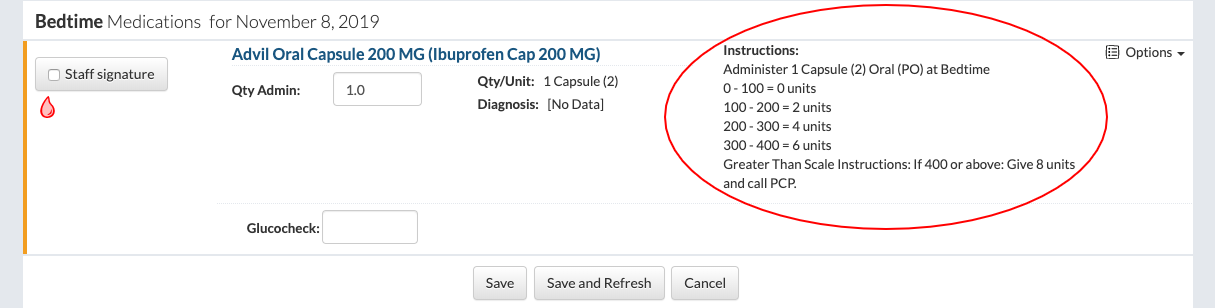
The sliding scale insulin instructions are clearly listed, ensuring the staff member understands them correctly.
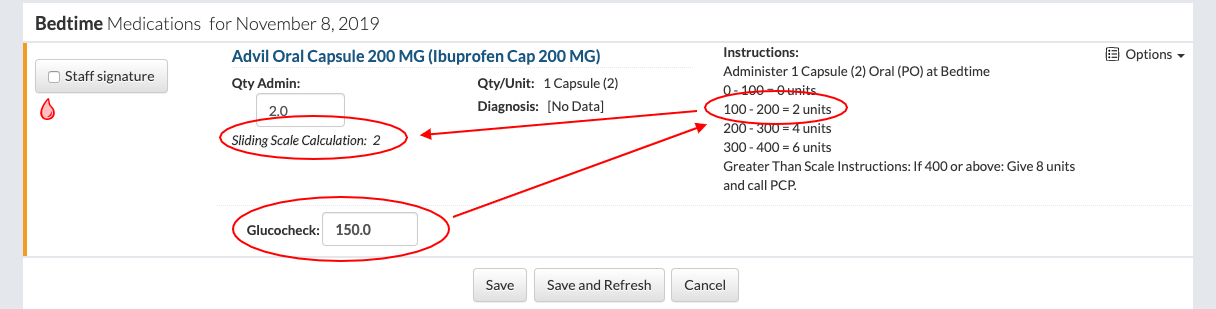
When the glucose level has been entered, a "Sliding Scale Calculation" field will appear, prompting the staff member with the correct unit according to the sliding scale instructions.
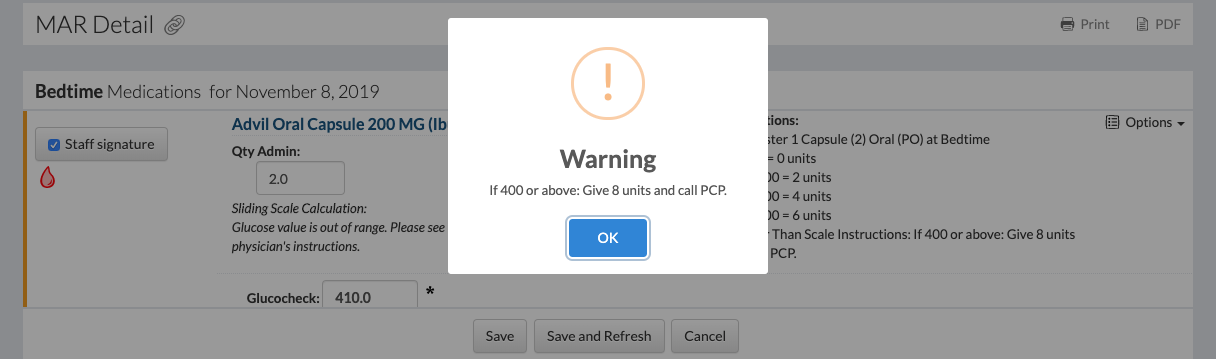
If the glucose level is higher than the scale, a warning alert will pop up, giving the staff member instructions on how to proceed.
The quantity administered is entered in the "Qty Admin" field. Note that even if the quantity administered doesn't match the calculation, it should still be entered here.
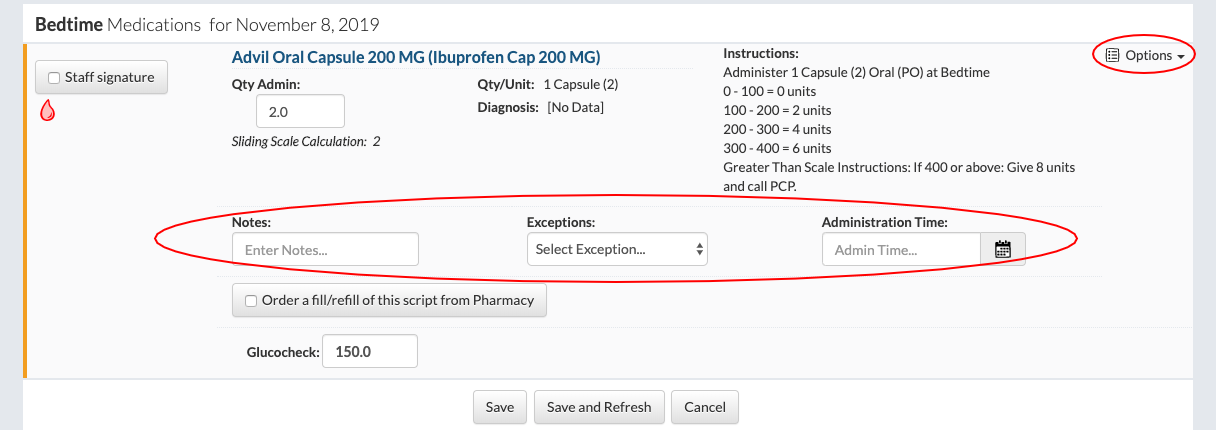
Click on the "Options" link to enter in any notes, exceptions, or administration times.
Select the "Staff Signature" button.
Click the "Save" button to finish.
View Past/Completed MARs Per Resident
Click on "Select Resident" under the "Resident" tab.
Select a resident.
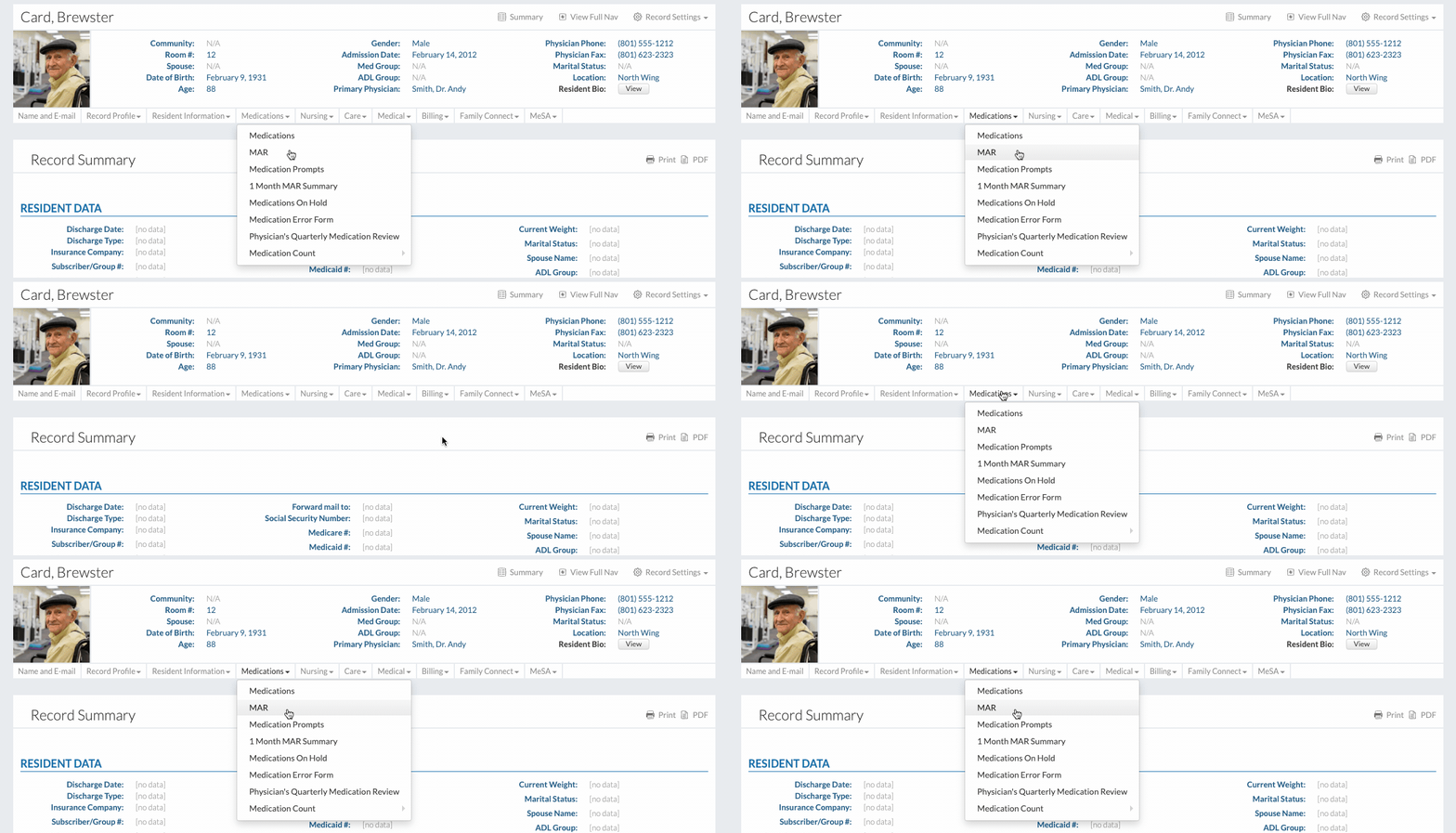
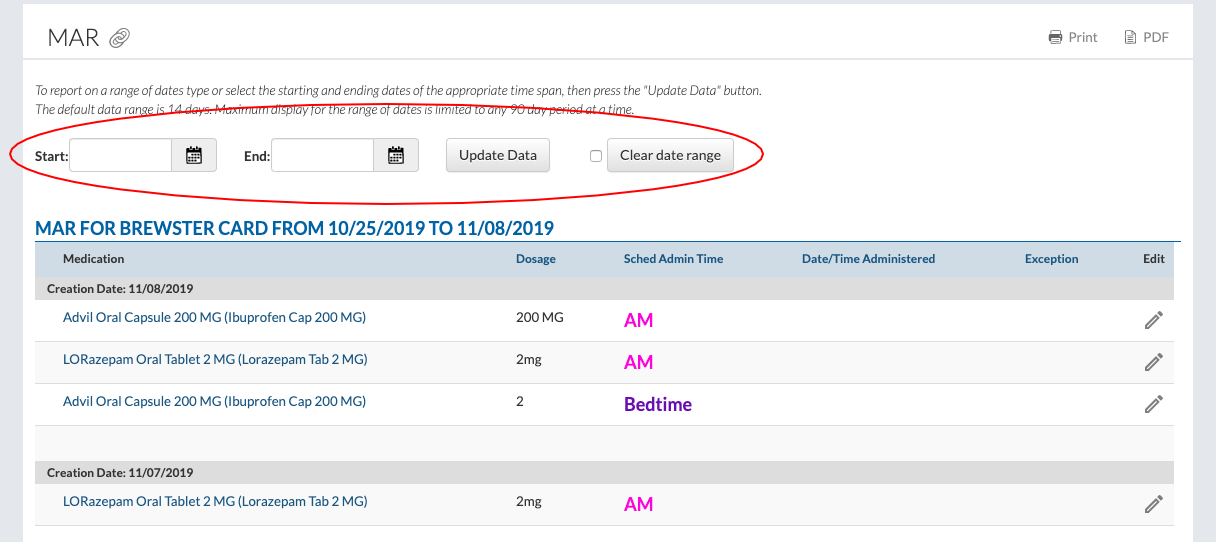
Click on "MAR" under the "Medications" dropdown.
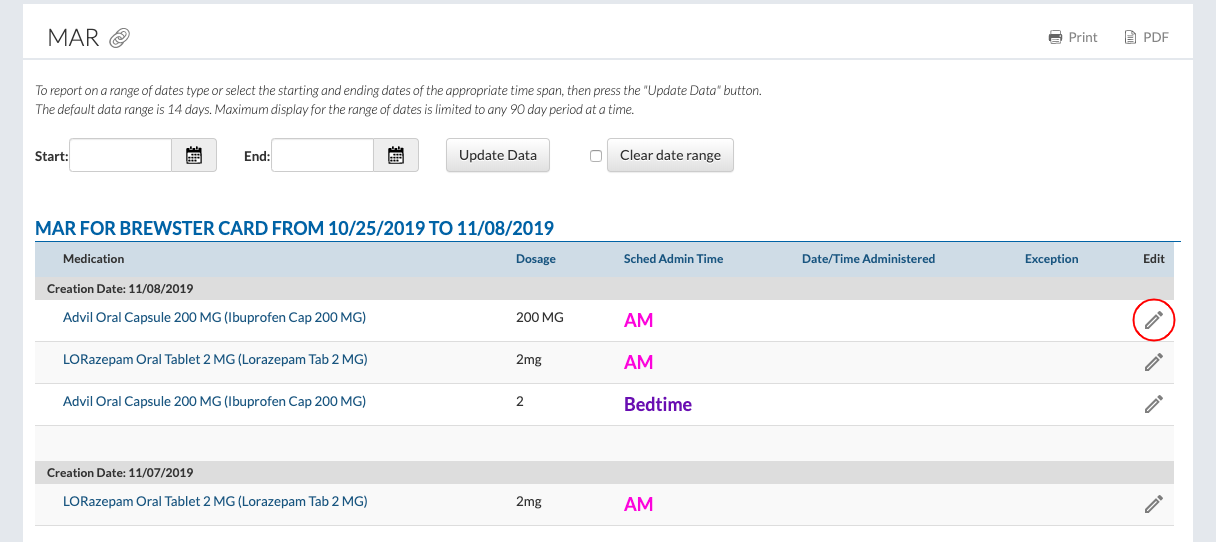
Click on the edit pencil to view the MAR information.
Use the search bar at the top of the page to filter by date.
View All the Past/Completed MARs For the Community
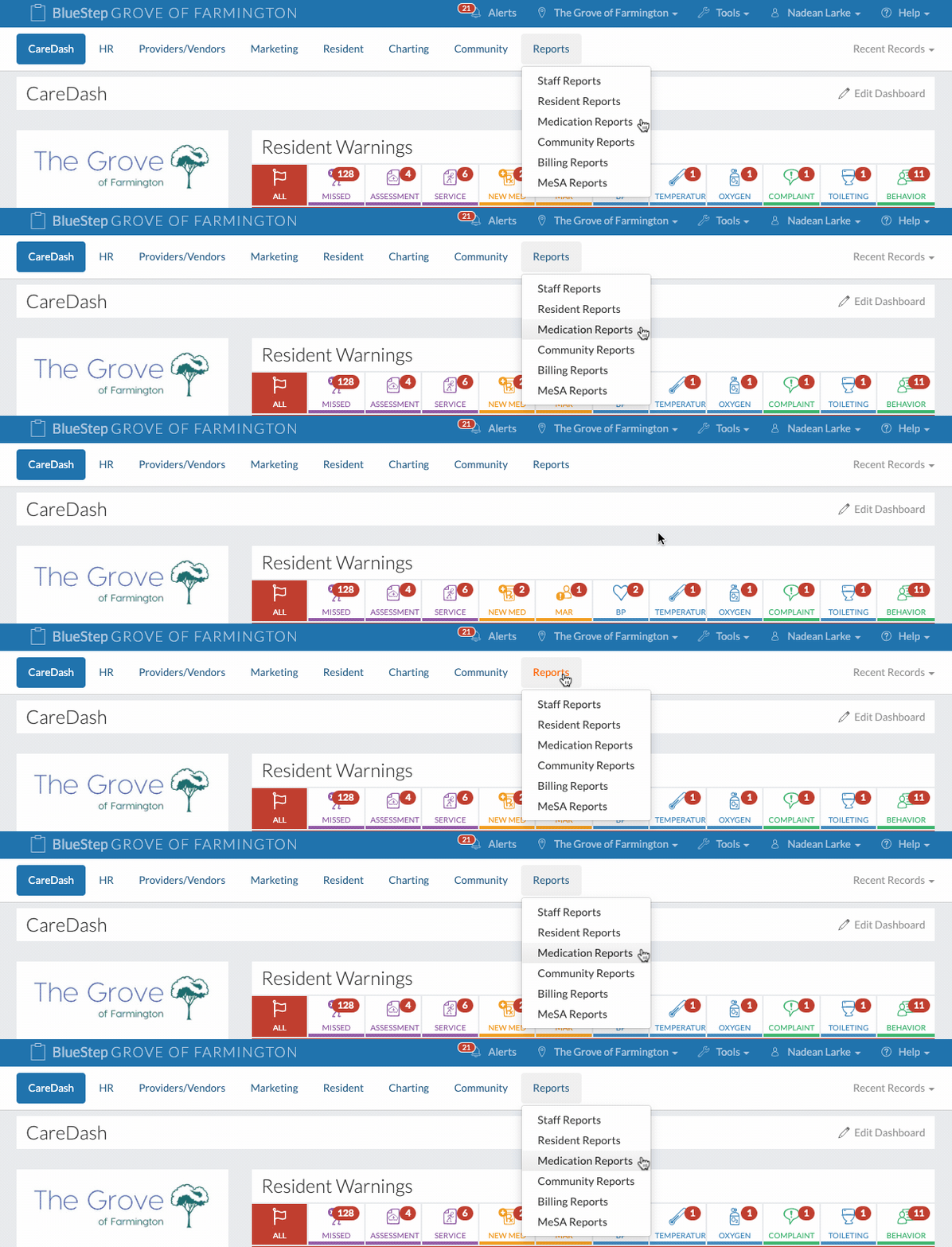
Click on "Medication Reports" under the "Reports" tab.
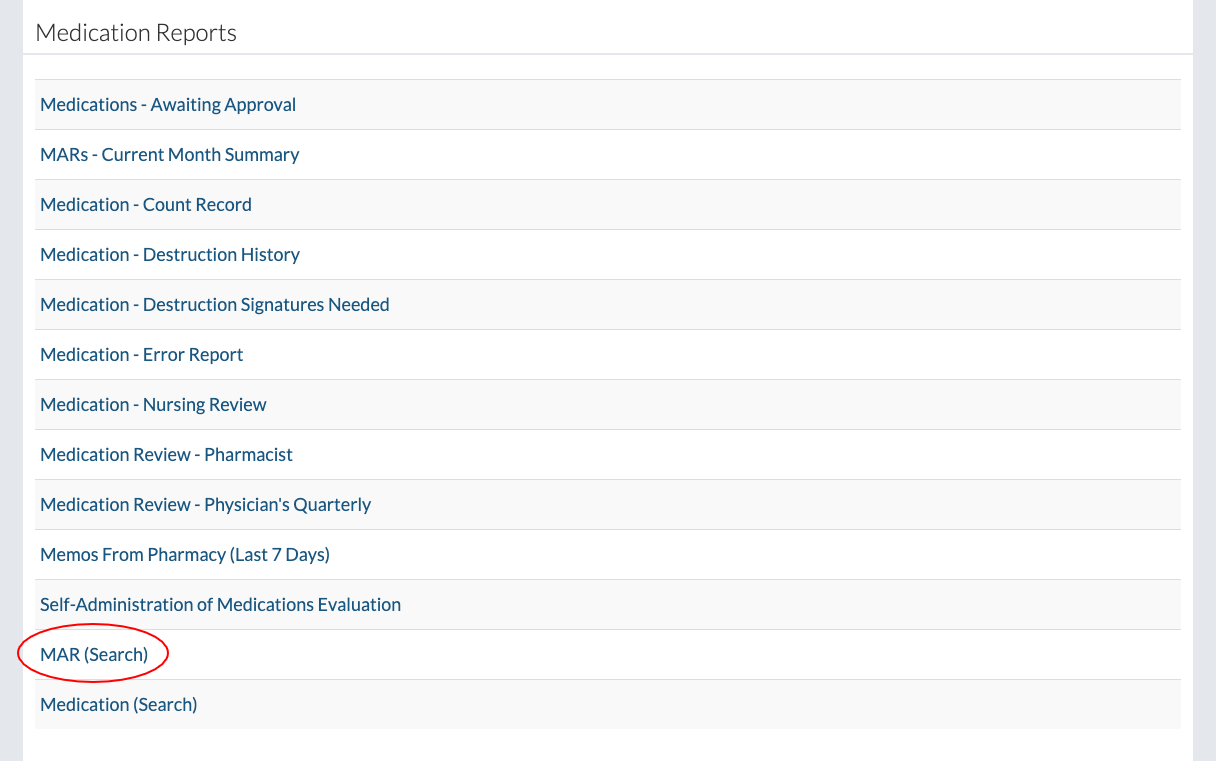
Click on the "MAR (Search)" link.
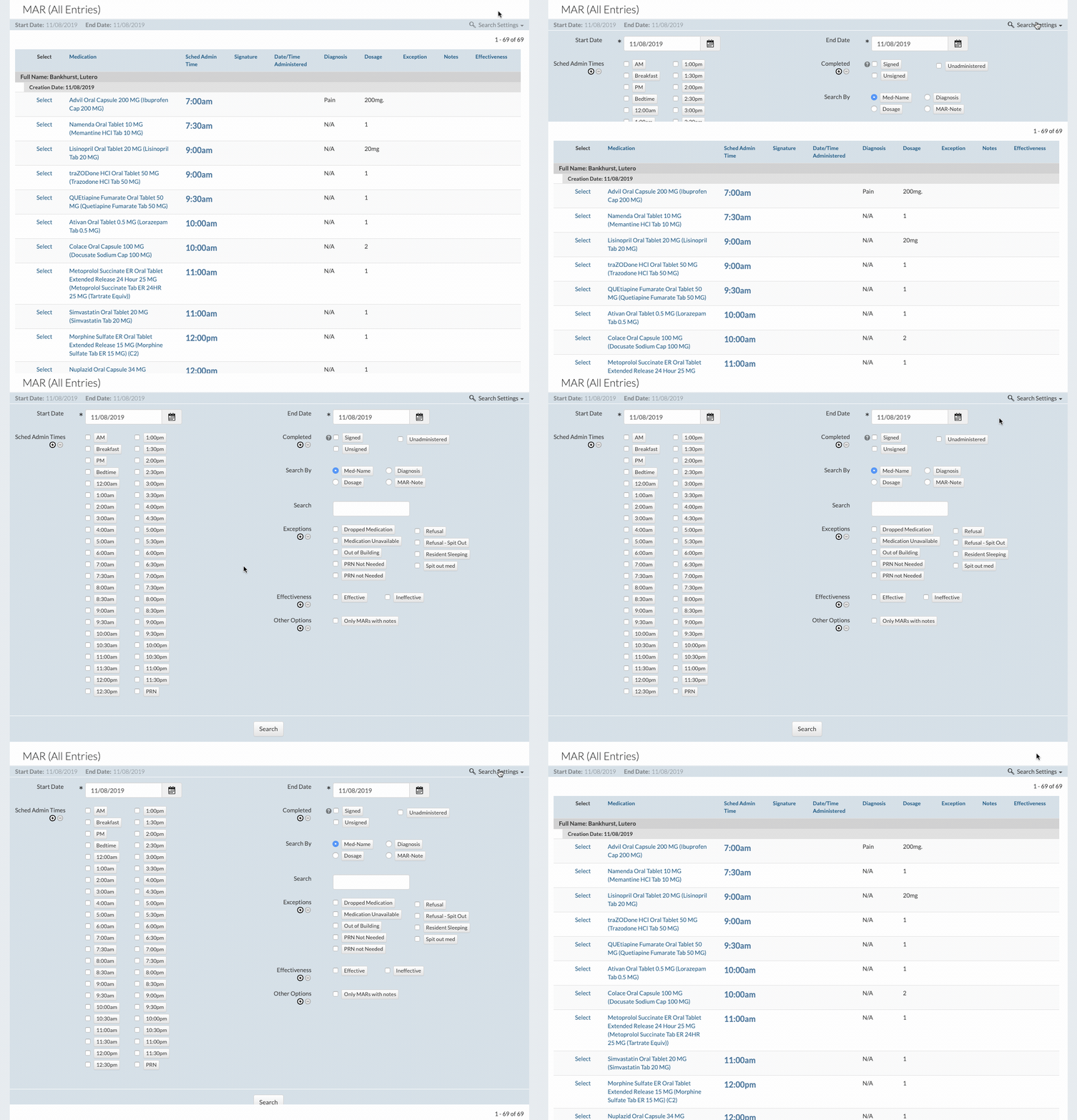
Use the search bar to pinpoint specific MARs.
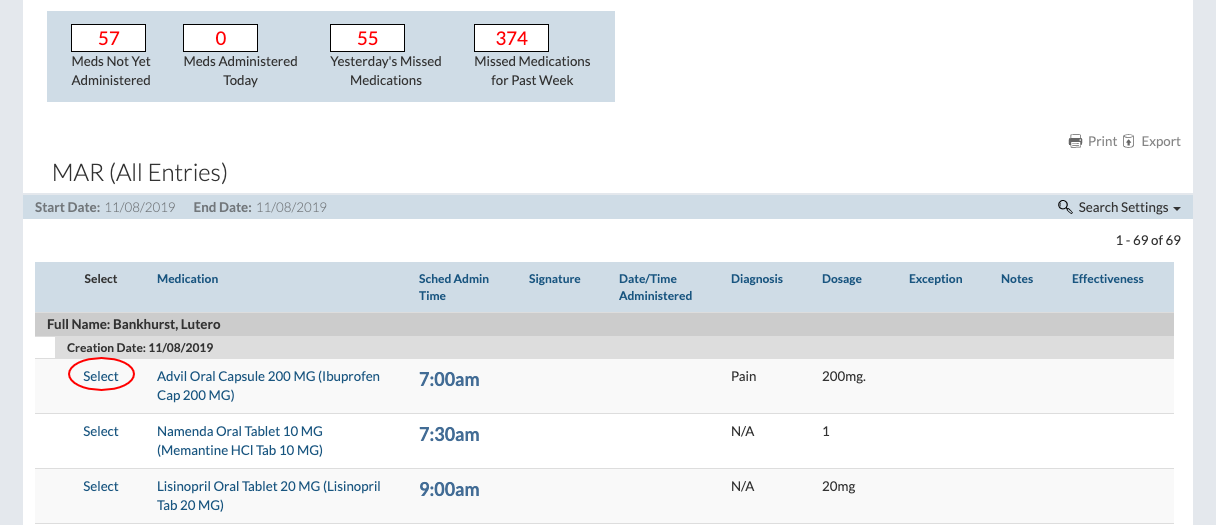
Click on the "Select" link of a MAR to view the MAR information.